Take it easy, sit back and relax
Foreword
When looking for self-hosted image hosting or private cloud storage solutions, MinIO is often the first choice. However, for individual developers or small teams, Garage is a lighter, higher-performance, and more flexibly configured alternative. It is written in Rust, has extremely low resource usage, and is perfectly compatible with the AWS S3 protocol.
This article will detail how to deploy a production-ready Garage object storage service on the 1Panel panel using Docker Compose. This article will record and solve common configuration pitfalls (such as CORS cross-origin issues, WebUI authentication, domain binding, etc.) to create a private OSS that is both secure and easy to use.
0 Preparation
- Server OS: Debian 12 (Recommended) / Ubuntu 22.04+
- Management Panel: 1Panel (OpenResty/Nginx installed)
- Core Tools: Docker & Docker Compose
- Planned Domains:
s3.example.com—— S3 API Interface (For upload/management tools)img.example.com—— Public Access Domain (For referencing images in blogs/websites)admin.example.com—— Web Management Dashboard (WebUI)
1 Configuration File Preparation (garage.toml)
- Create directory in 1Panel:
/opt/garage/config. - Create file
garage.tomland fill in the following content:
CodeBlock Loading...
2 Writing the Orchestration File (docker-compose.yml)
Key Points:
- WebUI Mount Configuration: The WebUI container must mount
garage.tomlto automatically read theadmin_token. - Password Escaping: In YAML, the
$symbol in Bcrypt password hashes must be written as$$.
Create the orchestration garage-stack in 1Panel with the following content:
CodeBlock Loading...
Start the orchestration and ensure both containers show as "Running".
3 Initialize Node Layout (Layout)
Newly started Garage is in an "unassigned role" state and must be initialized.
View Node ID:
Execute in 1Panel terminal or SSH:
CodeBlock Loading...
Copy the displayed Node ID, e.g., a8795c63e0c82b0b.
- Assign Space and Apply Configuration:
CodeBlock Loading...
At this point, refresh the WebUI, and the status should turn to green Healthy.
4 Create Buckets and Configure Permissions
To use it as an image host, we need to create a bucket and allow public access.
1. Create Bucket
In the WebUI, click Buckets -> Create Bucket, and name it photo.
2. Bind Public Domain (Alias) & Enable Website Mode
This is key to allowing images to be accessed directly via https://img.example.com/xxx.jpg.
CodeBlock Loading...
You can also set the Alias directly in the webui and check the box to enable Website.
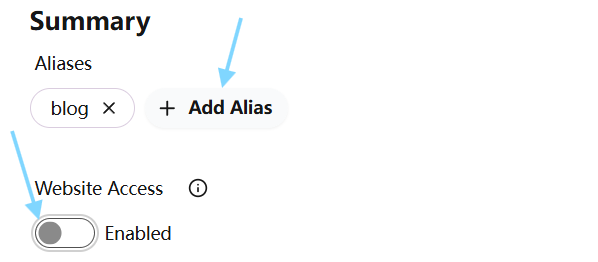
webui interface
3. Create API Key (Key)
- In the WebUI, click Keys -> Create Key (name it something like
blog-key). - Save immediately the popped-up Access Key ID and Secret Access Key.
- Click Permissions to the right of the Key, and check the Read/Write permissions for the
photobucket.- Or authorize via command line:
docker exec -it garage /garage bucket allow --read --write --key blog-key photo
- Or authorize via command line:
5 Reverse Proxy and HTTPS Configuration (1Panel)
We need to establish three reverse proxies in the "Websites" function of 1Panel:
| Domain | Proxy Address | Purpose |
|---|---|---|
s3.example.com | http://127.0.0.1:3900 | S3 API (Fill this in PicList/Lsky) |
admin.example.com | http://127.0.0.1:3903 | WebUI Management Dashboard |
img.example.com | http://127.0.0.1:3902 | Public Image Access (Note the port is 3902) |
Remember to apply for and enable HTTPS certificates for all domains.
Security Hint: When using Host mode, it is recommended to only allow ports 80/443 for Nginx in the 1Panel firewall or the cloud provider's security group. Do not directly expose Garage's ports 3900-3903 to the outside world; let all requests pass through the Nginx reverse proxy for better security.
6 Solving CORS Cross-Origin Issues
If you reference images on a blog or other websites, the browser will block cross-origin requests. We need to forcibly allow CORS in the Nginx configuration for img.example.com.
In 1Panel Website Settings -> Configuration File, find the location / block and add the following:
CodeBlock Loading...
Save and reload Nginx.
7 Client Connection Configuration
Now the service is fully ready. Fill in the following configuration in your image hosting tool:
- S3 Endpoint (Node):
https://s3.example.com - Bucket (Bucket Name):
photo - Access Key ID: (ID obtained in step 4)
- Secret Access Key: (Secret obtained in step 4)
- Region:
garage(Default) - Force Path Style: Enable (True)
- Custom Domain:
https://img.example.com